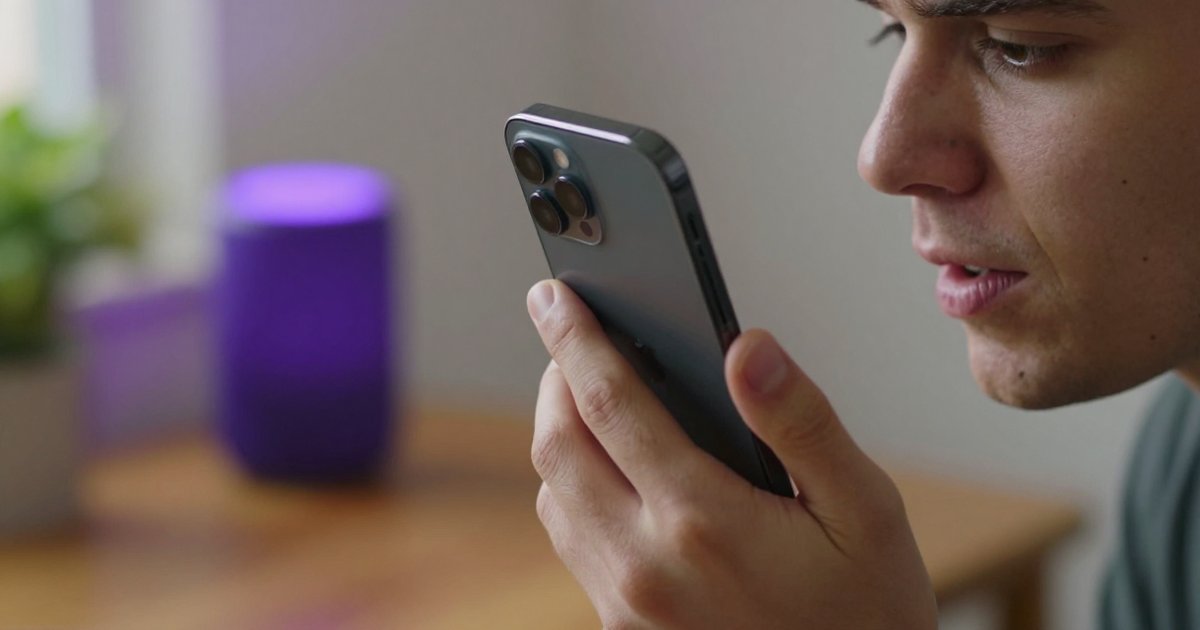
Before you book a repair, find out whether your microphone is actually dead. Most “my iPhone mic stopped working” cases turn out to be a blocked port, a denied permission, or audio quietly being routed somewhere else. The test below tells you in about ten seconds which situation you’re in.
What the result means
The bar moved. Your microphone hardware works and your browser can reach it. If a specific app still can’t hear you, the problem is that app’s permission or its audio settings — jump to the permissions step below.
The bar stayed flat. Something is between your voice and the microphone. Work through the fixes in order; they’re sorted cheapest first.
Your iPhone has more than one microphone
This is the detail that explains most confusing cases. An iPhone has several microphones in different places — at the bottom next to the charging port, in the earpiece at the front, and next to the rear camera. They don’t all get used for the same thing:
- Bottom mic — phone calls, Siri, voice memos
- Front/earpiece mic — FaceTime, selfie video, speakerphone
- Rear mic — video recording with the main camera
So if people can’t hear you on calls but your voice memos sound fine, you very likely have one blocked or failing microphone, not a broken phone. That’s a much smaller problem.
The fixes, in order
1. Clean the microphone openings. Lint from a pocket packs into the bottom grille and muffles the mic almost completely. Use a dry soft-bristle brush. Don’t push anything into the opening and don’t use compressed air.
2. Take off the case and any screen protector. A thick case or a film that overlaps the earpiece can cover a microphone opening outright. Test again with everything removed.
3. Check the app’s permission. Go to Settings → Privacy & Security → Microphone and confirm the app is switched on. An app that was denied once stays denied silently, which looks exactly like broken hardware.
4. Disconnect your Bluetooth audio. This one catches a lot of people. If AirPods or a car kit are connected, your iPhone may be listening through them, not through the phone. Open Control Center, disconnect Bluetooth audio, and try again.
5. Restart the iPhone. A stuck audio session survives closing the app but not a reboot.
6. Update iOS. Go to Settings → General → Software Update. Microphone bugs do get fixed in point releases.
7. Check Mic Mode on video calls. During a FaceTime or video call, open Control Center and look for Mic Mode. If it’s set to a mode that heavily suppresses background sound, quiet voices can get cut. Standard is the safe setting.
If none of that changes anything, it’s likely hardware, and Apple Support or an authorised repair centre is the right next stop.
How to hear each microphone on its own
Once you suspect one specific mic, you want to hear each one live rather than guess. That’s something ShareMic happens to be useful for: it lets you pick which physical microphone captures you and plays your voice back in real time, so you can switch between the bottom, front and rear mics and hear the difference immediately. Live microphone use is free, and it runs on iOS 18.0 or later.
To be clear about what it is and isn’t: ShareMic can’t repair a microphone. It’s a way to isolate which one is failing — and once your mic is healthy again, the same live routing turns your iPhone into a wireless microphone for any Bluetooth or AirPlay speaker.
One tip while testing: use headphones or a separate speaker. Monitoring your own voice through the iPhone’s own speaker creates feedback, and you’ll be listening to howl instead of to your microphone.
Test your microphone right now
Tap the button and speak normally. If the bar moves, your microphone is picking up sound.
What your browser reports
- Sample rate
- —
- Channels
- —
- Browser processing
- —
Hear yourself
Use headphones. Through a speaker your own voice loops back into the mic and howls.
Your audio never leaves your device — it is not recorded, saved, or uploaded.